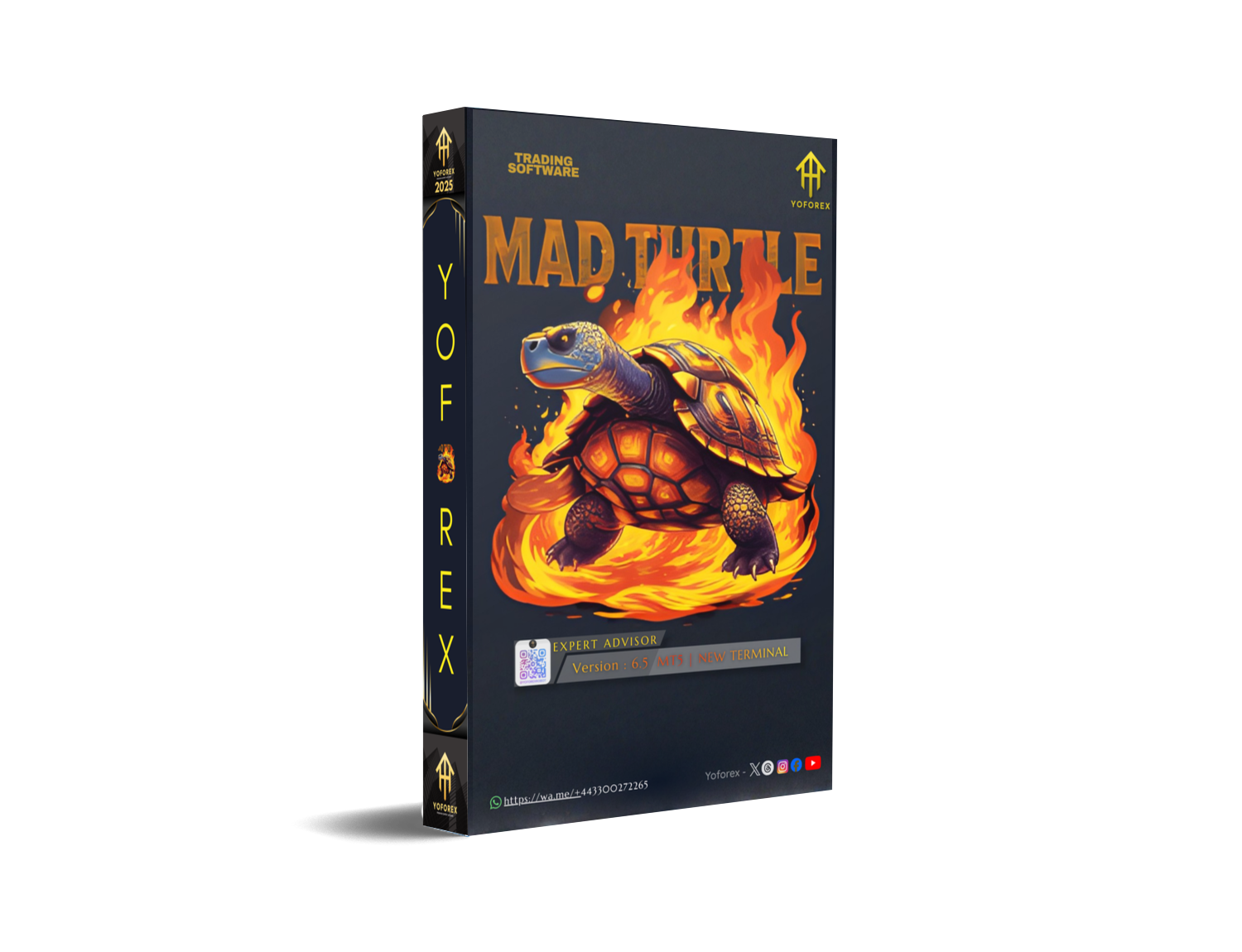
The landscape of retail Forex trading has shifted dramatically in the last few years. The days of simple linear indicators dominating the market are fading. Traders are no longer satisfied with basic RSI or MACD crossovers that fail as soon as market volatility spikes. Instead, the focus has moved toward true Machine Learning and Artificial Intelligence. Among the tools leading this charge is the Mad Turtle EA V6.5 for MetaTrader 5.
This guide is written specifically for beginners who want to understand, install, and profitably run the Mad Turtle EA. Unlike other bots that rely on dangerous grid systems or martingale strategies to fake their performance, Mad Turtle uses the ONNX (Open Neural Network Exchange) library to make decisions based on actual trained models. If you are new to automated trading or have been burned by "get rich quick" bots in the past, this guide will walk you through everything you need to know about setting up this sophisticated tool correctly.
Understanding the Core Technology
Before you even open your MetaTrader 5 terminal, it is crucial to understand what you are working with. Most Expert Advisors (EAs) are algorithmic scripts that follow a strict set of "if-then" rules. For example, "if the price moves up 10 pips, buy." The problem with this approach is that the market is organic and constantly changing. A rule that worked in 2020 might destroy an account in 2025.
Mad Turtle EA V6.5 is different because it uses Machine Learning models that have been trained on vast datasets. These models are exported into the ONNX format, which allows them to be read directly by MT5. Instead of following a simple rule, the EA analyzes the market structure on the H4 timeframe to determine the probability of a trend continuing. It looks at the "shape" of the market rather than just the price.
Why Version 6.5 Matters for Beginners
If you had tried to use earlier versions of this EA, you might have found them overwhelming. There were complex settings for thresholds and individual model management that required a deep understanding of the strategy. However, the release of Version 6.5 in late 2025 introduced several features that make it accessible to anyone.
The most significant update is the "Portfolio Mode." In previous iterations, you had to manage risk for every single chart manually. If you wanted to run a trend-following model and a scalping model, you had to calculate the lot sizes yourself to ensure you did not over-leverage your account. Version 6.5 automates this. It allows you to run multiple internal models simultaneously, and the EA handles the math.
Another critical update is the "Full Auto" functionality. This feature scans your account balance and your account currency (whether it is USD, EUR, GBP, or others) and automatically selects the correct lot size. For a beginner, this is a safety net. It prevents the common error of adding an extra zero to your lot size and blowing your account on a single trade.
Step-by-Step Installation Guide
Installing an EA that relies on external libraries like ONNX requires a few more steps than a standard installation. Follow this process exactly to ensure the bot functions correctly.
First, ensure you have a valid MetaTrader 5 account. This EA will not work on MetaTrader 4 because MT4 does not support the advanced machine learning libraries required. An ECN or Raw Spread account is highly recommended. These accounts charge a commission per trade but offer much tighter spreads. Since Mad Turtle is looking for precise entry points, paying a lower spread can significantly impact your long-term profitability.
Once you have your account, download the EA file. You will typically have a file with an .ex5 extension. Open your MT5 terminal, go to "File," and select "Open Data Folder." Navigate to the "MQL5" folder and then the "Experts" folder. Paste the file here.
Now, restart your MT5 terminal. In the "Navigator" panel on the left side, right-click on "Experts" and hit "Refresh." You should see Mad Turtle EA V6.5 in the list.
Before dragging it onto a chart, you must configure the terminal settings. Go to "Tools" in the top menu, select "Options," and then click on the "Expert Advisors" tab. You must check the box that says "Allow DLL imports." This is non-negotiable. The ONNX models function as external libraries, and without this permission, the EA cannot "think." It will simply sit on your chart and do nothing.
Configuring the Chart and Timeframe
Open a chart for XAUUSD (Gold). While the EA technically can run on other pairs, the developer has explicitly trained the primary models on Gold data. Gold trends differently than currency pairs like EURUSD; it has longer, more sustained directional moves, which is exactly what the "Turtle" model is designed to capture.
Set the timeframe to H4 (4 Hours). This is a critical detail. The machine learning models were trained on H4 data. If you place the EA on an M1 or M15 chart, it will be analyzing noise rather than the signal it was trained to recognize. The EA might technically run, but the results will be random and likely unprofitable.
Setting Up Full Auto Mode
Drag the EA onto your XAUUSD H4 chart. You will be presented with the settings window. For beginners, the "Trading Mode" setting is the most important. Change this to "FULL AUTO."
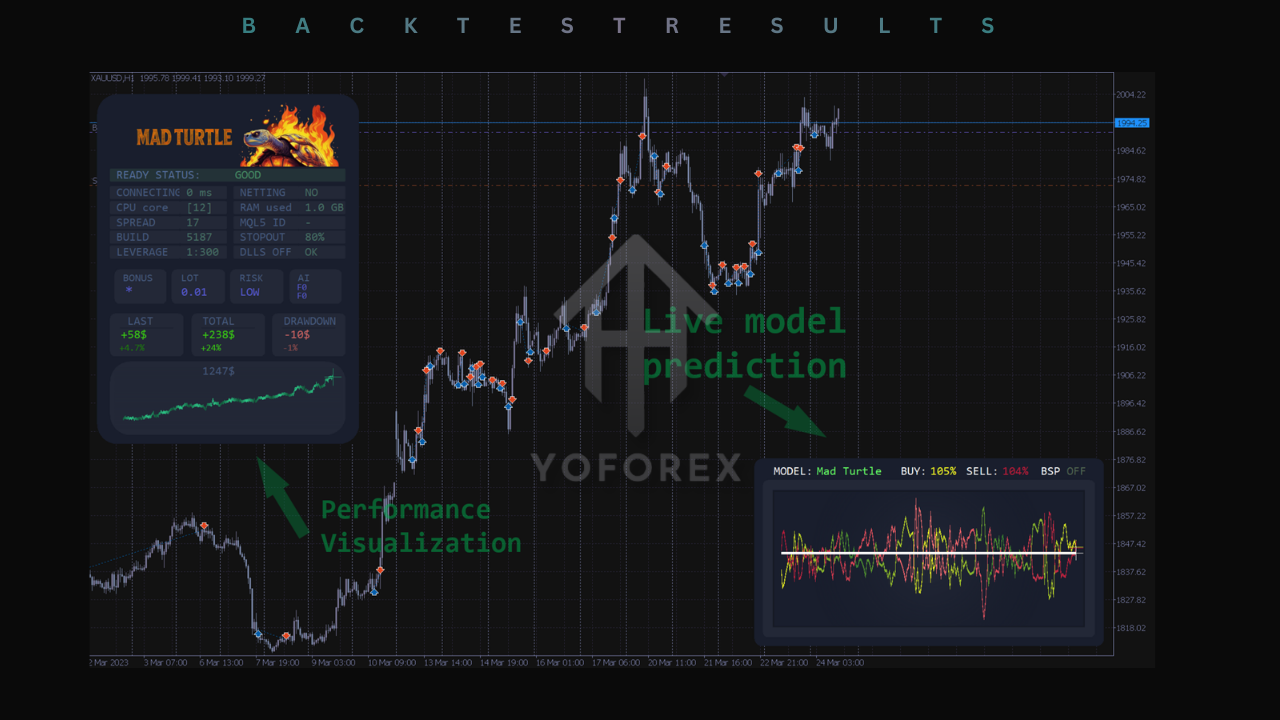
In Full Auto mode, the EA takes control of the complex decisions. You do not need to choose which specific neural network models to run. The EA has a built-in hierarchy of models—such as the "Turtle" for trends and "Scalper PRO" for ranges—and it will deploy them based on the current market conditions it detects.
Your primary responsibility here is setting the "Risk Level." You will see options for High, Mid, and Low.
If you are trading on a personal account where you can tolerate some volatility, the "Mid" setting offers a balanced approach. It aims for growth but keeps drawdowns manageable.
If you are attempting a challenge for a proprietary trading firm (prop firm), you must use the "Low" setting. Prop firms have strict daily drawdown limits (usually 5%). The High and Mid settings can sometimes exceed these limits during a string of losing trades. The Low setting is calibrated to stay within these strict boundaries, prioritizing survival over rapid growth.
Understanding the Portfolio Mode
As you become more comfortable with the EA, you might want to explore "Portfolio Mode." This feature allows you to diversify your risk within the single EA.
In trading, diversification is the only free lunch. By running two strategies that have a low correlation, you smooth out your equity curve. For example, trend-following strategies often lose money in ranging markets, while scalping strategies lose money in strong trends. By running both the "Turtle" (Trend) and "Scalper" (Mean Reversion) models together, you create a hedge. When one is losing, the other is likely winning.
To set this up, you would select "Portfolio" in the trading mode settings. You will then see a field to input the model IDs. The syntax is crucial here. You must separate the IDs with a semicolon. For example, entering "#1; #2;" tells the EA to run Model 1 and Model 2 simultaneously.
The Importance of Patience and Psychology
One of the hardest parts of using a professional-grade EA like Mad Turtle is adjusting your psychology. Many beginner traders are used to grid bots that show a profit every single day—until they blow up. Mad Turtle is different. It uses a hard Stop Loss on every trade.
This means you will have losing trades. You might have a losing week. This is completely normal in professional trading. The strategy relies on the fact that the winning trades, which catch the big H4 trends, will be larger than the losing trades.
Do not intervene. The biggest mistake beginners make is manually closing a trade because it is in a small loss, only to watch the price reverse and hit the Take Profit target hours later. You must trust the statistical edge of the ONNX models. If you constantly override the EA, you are invalidating the machine learning logic.
VPS: The Backbone of Automated Trading
Finally, you cannot run this EA on your home laptop if you plan to turn it off at night. The H4 calculation requires continuous data. If your computer goes to sleep or loses internet connection for an hour, the EA might miss a critical signal or fail to close a trade that has hit its exit criteria.
You need a Virtual Private Server (VPS). This is a remote computer that runs 24/7. You log into it, install MT5 and the EA, and then disconnect. The VPS keeps running, ensuring your bot never misses a beat. For Mad Turtle, you do not need an incredibly expensive server, but you do need one with a stable connection and at least 2GB of RAM to handle the ONNX memory requirements.
Conclusion
Mad Turtle EA V6.5 represents a significant step forward for retail traders. It democratizes access to institutional-grade machine learning technology. By following this guide—sticking to the H4 timeframe, using the Full Auto mode, managing your risk, and using a VPS—you place yourself in the best possible position to succeed. Trading is a marathon, not a sprint. Let the "Turtle" run its course, and you may find that slow and steady truly does win the race.



Comments (0)
No comments yet. Be the first to comment!
Leave a Comment